Sector Report
Getting started
From install to your first PDF in about ten minutes, using the demo time cards: a made-up 45-minute race with 22 cars in two classes, a full-course yellow and pit stops.
1. Install and activate
- Run the installer. It installs for your Windows user only; no administrator rights needed.
- Start Sector Report from the Start menu.
- In the License panel at the top of the sidebar, paste your license key and click Activate (the PC must be online). No key yet? Get a free 15-day trial key.
Without a license you can still look around and edit setups; opening time cards and generating reports need the key.
2. Open the time cards
- Download the demo time cards and unzip them anywhere.
- Click Open timecards… and choose
Demo_Timecards_Race.json. The header shows the circuit, session, number of cars and how many are in the report.
Your own events: open the series’ Al Kamel results site (Al Kamel live results lists them all) and find the session’s Time Cards file in JSON. Right-click it and choose Save link as…; clicking it only shows the text in your browser. Some series only publish an Analysis file in CSV; that works too.
Al Kamel gives every session’s file the same name, so keep a folder per event or rename the file.
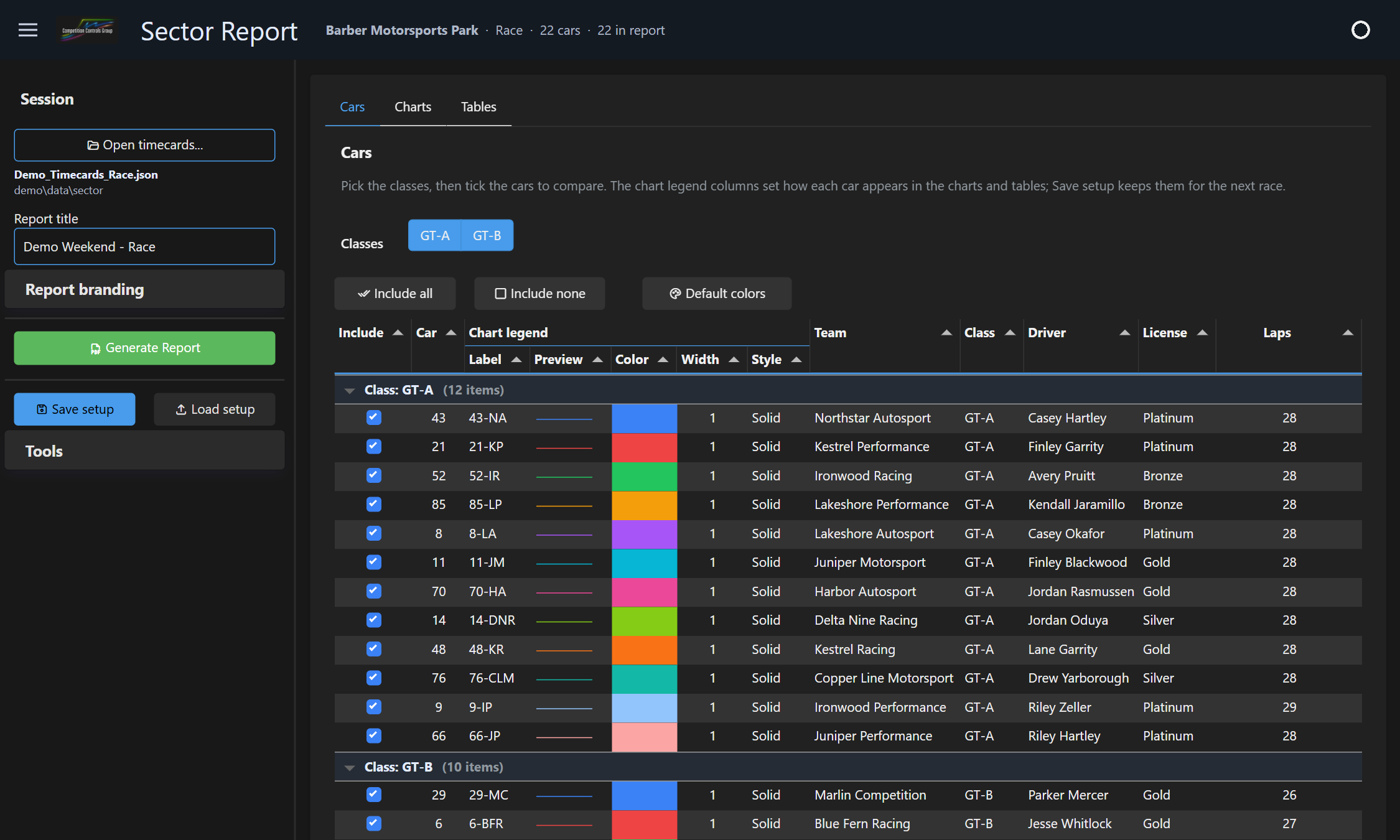
3. Choose classes and cars
- Classes switches whole classes in or out. Gaps are measured to the fastest included car, so pick a single class for class-relative numbers.
- Include (the checkbox) adds or removes single cars.
- Chart legend (label, color, width and line style) is used in every chart and table; the preview shows the line as it will be drawn. Give your own cars a thicker line so they stand out, and a dashed line to tell teammates with similar colors apart.
- Default colors gives each class the standard palette.
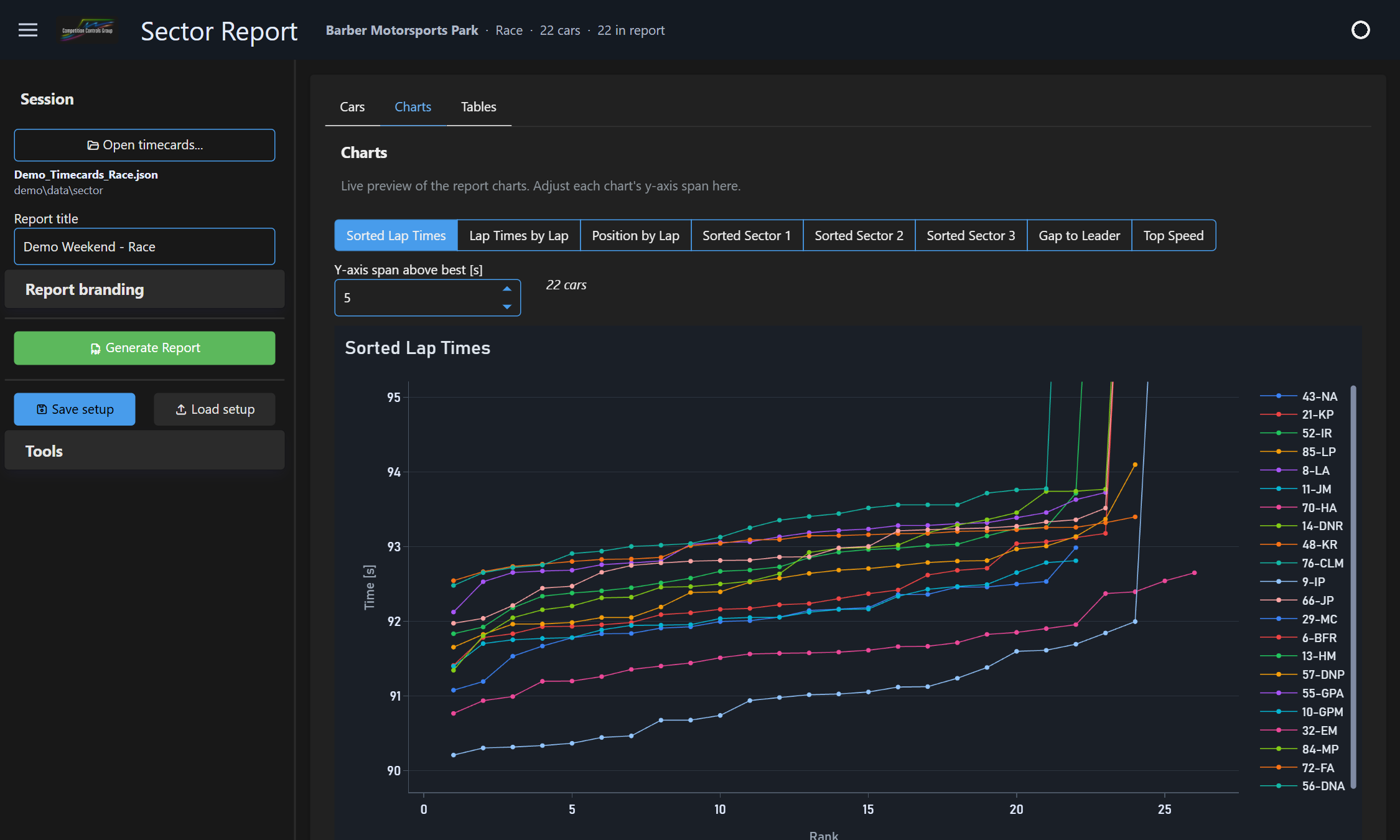
4. Check the charts and tables
- Charts: sorted lap times, lap times by lap, position by lap, sorted sectors 1-3, gap to leader and top speed. The span sets how far above the best time the axis goes.
- Tables: best lap, theoretical best and the average of each car’s best laps; sectors against the class best; drivers (when cars change drivers); and stints with tire fall-off.
- Average of best (%) sets how many laps are averaged (25% by default).
5. Generate the PDF
- Set the Report title. Under Report branding, add a cover photo and your team logo (both are saved with the setup).
- Click Generate Report and choose where to save it. The PDF opens when it’s done.
6. Save the setup
Save setup stores the classes, car labels, colors and lines, chart spans, title and branding in a JSON file; save one per series. Next event: open the new time cards and Load setup; cars are matched by car number.
If something goes wrong
“Action needed” in the License panel
The panel says why. Usually the PC needs to go online once; connect and click Check now.
A file won’t load
The message in the corner of the window says why. CSV files must be the semicolon-separated Al Kamel export with the standard columns.
Anything else
Sidebar > Tools > Report a problem opens an email to support with the app version filled in, and shows your recent logs zipped to attach. Or write to support@competitioncontrols.com.
The full manual is in the app: sidebar > Tools > User manual.